Templates, drafts and sending
Table of contents
What is a link tracker?
Link tracking means measuring how readers interact with links. It shows, for example, which hyperlinks in a newsletter were clicked often or less often, so that you can optimise on this basis.
Can I still pause or stop a newsletter that is being sent?
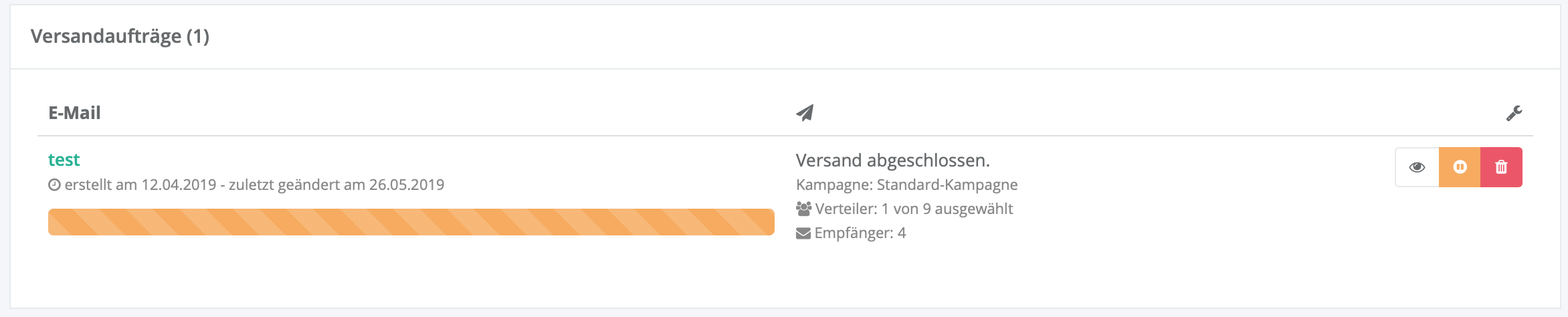
You have just scheduled your newsletter for sending and notice a mistake? No problem. You can pause and/or stop the send job or delete it completely at any time. To do so, go to the sending overview in your administration area, where you can see all send jobs.
Click the orange pause button to stop sending. You can then decide whether the send job should be deleted straight away or stopped.
How can I add a plain-text version to my HTML newsletter or embed images?
Adding a plain-text version automatically
With our editor you can create perfectly designed newsletters for all devices (mobile phone, tablet or desktop). Nevertheless, some readers prefer a plain-text version. Our software can generate the plain-text version automatically and add it to the newsletter. This means that the email program shows the automatically created plain-text version (if the reader wishes).
Embedding images
From the Gold package upwards you can embed images. When newsletters are sent with embedded images (also called inline or embedded), all images are technically inside the email as attachments. The newsletter can therefore also be displayed offline. No images are loaded from the internet (except the tracking pixel when the open rate is measured). This increases the likelihood that the images are displayed correctly. The disadvantage of this solution, however, is that an email with embedded images is larger in total than one with images from an external source.
Referenced images
One of the advantages of external images is the considerably smaller email size. This reduces the loading time and the risk of the newsletter being sorted out as spam.
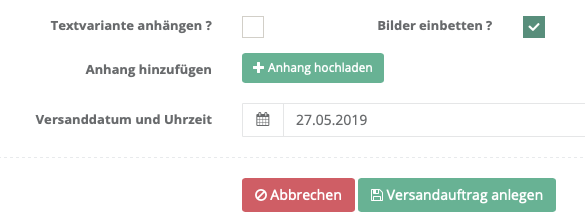
The following screenshot shows the options in the sending dialogue:
How do I add an unsubscribe link to my newsletter?
As a sender you must offer every reader a direct way to unsubscribe at the end of an email. This also helps to prevent your newsletter from being marked as SPAM. You can decide where the unsubscribe link should be placed.
To do so, insert a special link in the newsletter:
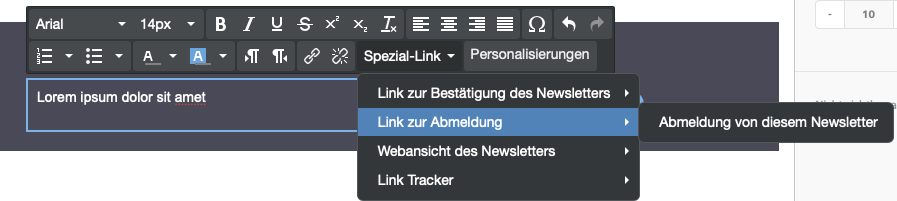
The special link points to the personalisation <%$_unsubscribelink%>. The link text can be changed as you like.
Please note that this link does not work in the browser preview. The link is only personalised when the newsletter is sent.
How can I change the sending time afterwards?
A send job that has already been created can be changed or deleted at any time before it is sent. To change the sending time, click the (blue) cog icon. In the following dialogue you can now adjust the date and time.
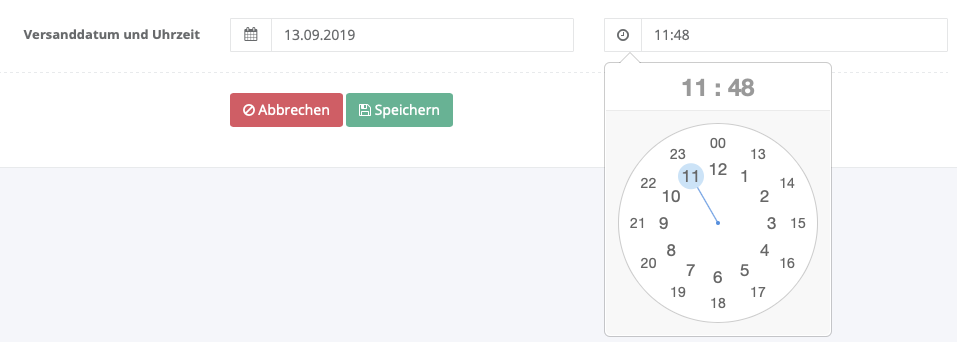
A newsletter that is already being sent can be paused or stopped.
How can I add a link to the online version / web view?
In case the reader's email program does not display the newsletter correctly or images cannot be loaded for security reasons, we offer an additional online version / web view of the newsletter. A personal link in every newsletter takes readers directly to their personalised newsletter. Personalisation (salutation etc.) and the link to unsubscribe / change the subscription also work in this online version. Like the unsubscribe link, the link is inserted as a special link (name: web view of the newsletter).
Can I send a newsletter in several languages?
You can send a newsletter in several languages. To switch between the languages in the newsletter, use the conditional logic for personalisations. A personalisation (language) can, for example, easily be used to show the right language:
<% if $p.Language == "en" %>
But I must explain to you how all this mistaken idea of denouncing...
<% else %>
Lorem ipsum dolor sit amet, consectetur adipiscing elit...
<% /if %>
If you would like to use different newsletter templates for each language, you can restrict the recipients with segmentation. In the segmentation, choose the personalisation language and the desired language as the value:

Alternatively, you can of course also create one list per language and send different newsletters (including autoresponders and follow-ups) to each list.
Can I use different languages on the subscription and unsubscription pages?
Depending on how you distinguish the language (personalisation or list), you can also set different languages in the subscription and unsubscription forms. The following examples show the variant with a personalisation as well as with a separate list per language.
Under Integration -> Forms, choose the subscription or unsubscription form. In the form, use the following conditional logic to distinguish the language (excerpt):
- Language as a personalisation:
...
<%if $text == 1%>
    <% if $p.Language == "en" %>
    Thanks for your interest and subscription to our newsletter.
    <% else %>
    Thank you for subscribing (in your other language).
    <% /if %>
<%elseif $text == 2%>
...
- Separate list per language:
...
<%if $text == 1%>
    <% if $verteiler_id == "43131" %>
    Thanks for your interest and subscription to our newsletter.
    <% else %>
    Thank you for subscribing (in your other language).
    <% /if %>
<%elseif $text == 2%>
...
You will find further documentation with examples here.
How can I address readers with a personal salutation?
Please see our guide to personalisation. Provided you have already created a personalisation (e.g. name), you can use the following code in the newsletter.
<% if $p.FirstName != "" && $p.Name != "" %>
Dear <% $p.FirstName %> <% $p.Name %>,
<% else %>
Hello,
<% /if %>
More information on importing personal data.
How can I add a subscription or confirmation link to the newsletter or request the double opt-in afterwards?
If you imported recipients with an opt-in in the past and would like to log legally valid proof in our system, we offer a simple way to do so. All you need to do is include the subscription link (e.g. as a button) in your next newsletter. When the subscription link is clicked, the date and time as well as the IP address of the confirmation are updated or, if not present (imported in the past), added.
To do so, choose the action "Special link" for a button in the responsive editor and then "Link to confirm the newsletter", as shown in the following screenshot.
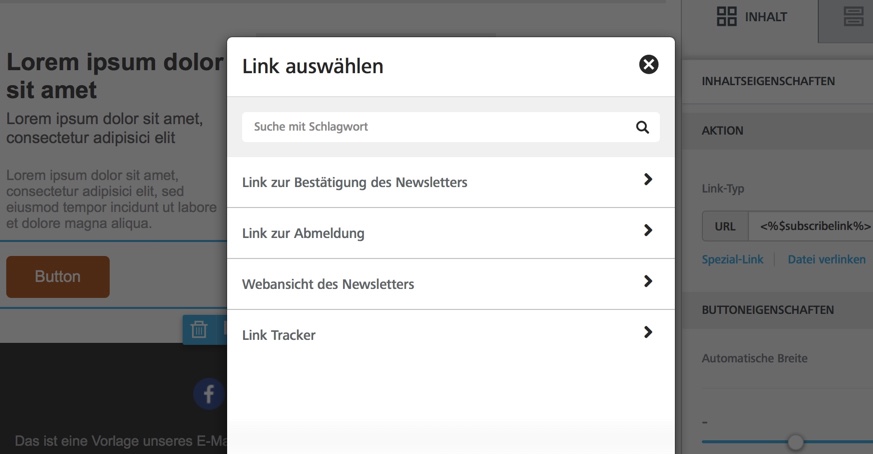
When confirming, recipients are shown by default that their subscription has already been confirmed. You can of course change this content yourself and rewrite it to say that the subscription has been confirmed successfully and to thank recipients for their confirmation or consent. You will find this text under Integration -> Forms (opens in a new tab). Please adapt the form "Confirmation of successful subscription / thank-you page" there and then test the content by subscribing to your test list.
Which attachments can I send? What is the maximum size of attachments?
From the Gold package upwards you can send images (JPG, GIF, PNG etc.) or PDF files with our software. The total size of the attachments together with the newsletter must not exceed 7.5 MB.
How can I edit the pre-header / preview text?
The preview text, also called the pre-header, can be added in the editor with the following steps:
- Add a new single-column row at the very top of the newsletter.
- Now create an HTML block in this new first row.
- In the content properties of this HTML block, insert the following content:
<div style="display:none;font-size:1px;color:#333333;line-height:1px;max-height:0px;max-width:0px;opacity:0;overflow:hidden;">
Content of the preview text...
</div>
Can I send a newsletter again to recipients who have not opened it?
Yes. In the overview of sent newsletters you will find the button 🔁 resend to non-openers for every newsletter that has already been sent. It duplicates the newsletter and takes you straight to the sending dialogue. The lists/groups originally selected are preselected automatically but can still be changed.
In the sending dialogue, also activate the option "Only send to non-openers" and use it to choose the original (already sent) newsletter as the reference. Only recipients who have not opened this reference newsletter are then included.
This option can also be combined with the existing restrict / filter recipients function (segmentation by personalisation). Both filters are combined with AND, which means that only recipients who meet the segment condition and have not opened the reference newsletter are included.